The 100KB and 200KB File Size Limit
Government portals, university applications, HR systems, and job boards frequently require uploaded images to be under a specific file size — most commonly 100KB or 200KB. These limits apply to passport photos, signature scans, and profile pictures.
A typical smartphone photo is 3,000–8,000KB. Getting it to 100KB requires reducing both the pixel dimensions and the compression quality in the right combination.
The Two-Step Method
Step 1: Resize to appropriate dimensions
The most effective way to reduce any image to under 100–200KB is to resize it to the actual display size required by the form. Common requirements:
- Passport photo: 200×200 to 413×531 pixels
- Signature image: 280×80 to 400×120 pixels
- Profile photo: 150×150 to 300×300 pixels
Go to PixlTools Resize Image, enter the pixel dimensions required by the form, and download. This step alone typically reduces a smartphone photo from 4MB to 150–500KB.
Step 2: Compress to your target
After resizing, upload to PixlTools Image Compressor and adjust quality:
To reach ~200KB: Use quality 75–80 on a 400–600px image
To reach ~100KB: Use quality 65–70 on a 300–400px image
To reach ~50KB: Use quality 55–60 on a 200–300px image
Target Size Reference Table
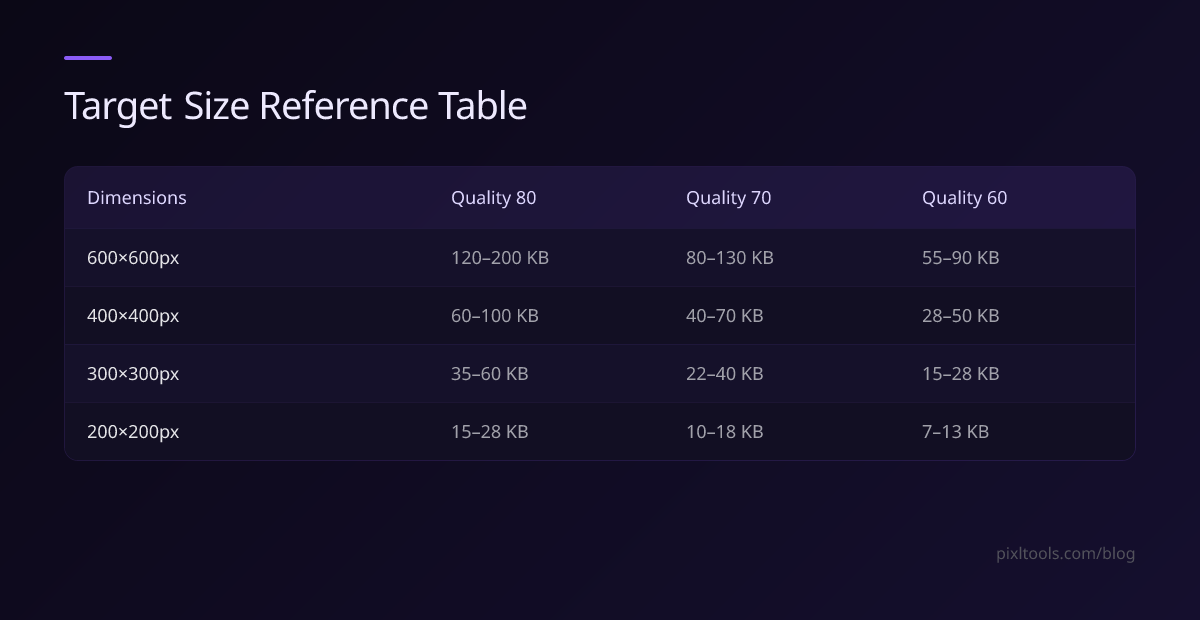
| Dimensions | Quality 80 | Quality 70 | Quality 60 |
|---|---|---|---|
| 600×600 px | 120–200 KB | 80–130 KB | 55–90 KB |
| 400×400 px | 60–100 KB | 40–70 KB | 28–50 KB |
| 300×300 px | 35–60 KB | 22–40 KB | 15–28 KB |
| 200×200 px | 15–28 KB | 10–18 KB | 7–13 KB |
Use this as a starting point, then adjust — actual file sizes vary based on image content (solid backgrounds compress to much smaller than complex scenes).
Use JPEG, Not PNG, for Document Photos
PNG uses lossless compression, so a 400×400 PNG photo will typically be 200–600KB regardless of compression settings. For passport photos and document uploads targeting 100KB or 200KB, always use JPEG.
If your image is PNG, use PixlTools PNG to JPG converter first, then compress the resulting JPEG.
Checking Your File Size
After downloading your compressed image:
- Windows: Right-click the file → Properties → check "Size"
- Mac: Right-click → Get Info → check "Size"
- iPhone: Open Files app → long-press the image → Info
If the file is still over your target, download the image again at a slightly lower quality setting (reduce by 5) or trim 20–30 pixels from each dimension.
Common Mistakes
Compressing without resizing first: A 3000×2000 pixel image at quality 50 still produces a 400–600KB JPEG. Resize to 400×300 first.
Saving as PNG for photos: PNG cannot reliably produce sub-100KB files for photographs. Use JPEG.
Compressing multiple times: Re-compressing a JPEG adds compression artifacts without making it smaller. Start from the original full-quality file each time.
Frequently Asked Questions
How do I reduce an image to exactly 100KB?
There is no single formula since file size depends on pixel content. Start with the table above as a guide, download, check the size, and adjust quality by ±5 until you land in the right range. Two or three attempts is usually enough.
Can I compress a PNG to 100KB?
Not for photographs. Use PNG to JPG converter first, then compress the JPEG to your target.
What dimensions should a 100KB profile photo be?
A 300×300 pixel JPEG at quality 70 typically produces a 22–40KB file. A 500×500 pixel JPEG at quality 75 is typically 60–100KB. Start with 400×400 at quality 75.
Does compressing to 100KB make the image look bad?
At the dimensions required for most form uploads (200–400px), quality 65–75 is effectively indistinguishable from the original at normal viewing sizes on screen and in print.