Why Image Size Matters for Email
Email providers impose attachment size limits — typically 10MB (Outlook), 25MB (Gmail), or 20MB (Yahoo Mail). Exceed these and your email bounces or the attachment is silently stripped. Even within the limit, large attachments slow down send times, fill recipients' inboxes, and often trigger spam filters that scan oversized messages more aggressively.
For photos taken on a modern smartphone, a single uncompressed JPEG is typically 3–8MB. Attach three photos to an email and you're already at 9–24MB — right at the limit.
The target for email attachments:
- Single photo: 500KB–1MB per image
- Multiple photos (3–5): 200–400KB per image
- Thumbnails/previews: 50–150KB
The Fastest Method: PixlTools Image Compressor
- Go to PixlTools Compress Image
- Upload your photo (JPG, PNG, or WebP)
- Set quality to 75–80 — this produces files 60–80% smaller with no visible difference at normal screen sizes
- Download and attach to your email
For multiple photos, process each one and then attach them all. The entire process takes under a minute per image.
Which Format to Use for Email
| Format | Best For | Email Size |
|---|---|---|
| JPEG | Photos, portraits, landscapes | ✅ Smallest — use this |
| PNG | Screenshots, graphics with text | ⚠️ Larger — only if needed |
| WebP | Modern browsers/apps | ⚠️ Some email clients don't render it inline |
| HEIC | iPhone originals | ❌ Many clients can't open — convert to JPG first |
For email, always use JPEG. It gives the smallest file size for photographs. If you're sending iPhone photos, convert HEIC to JPG before attaching.
What Quality Setting for Email?
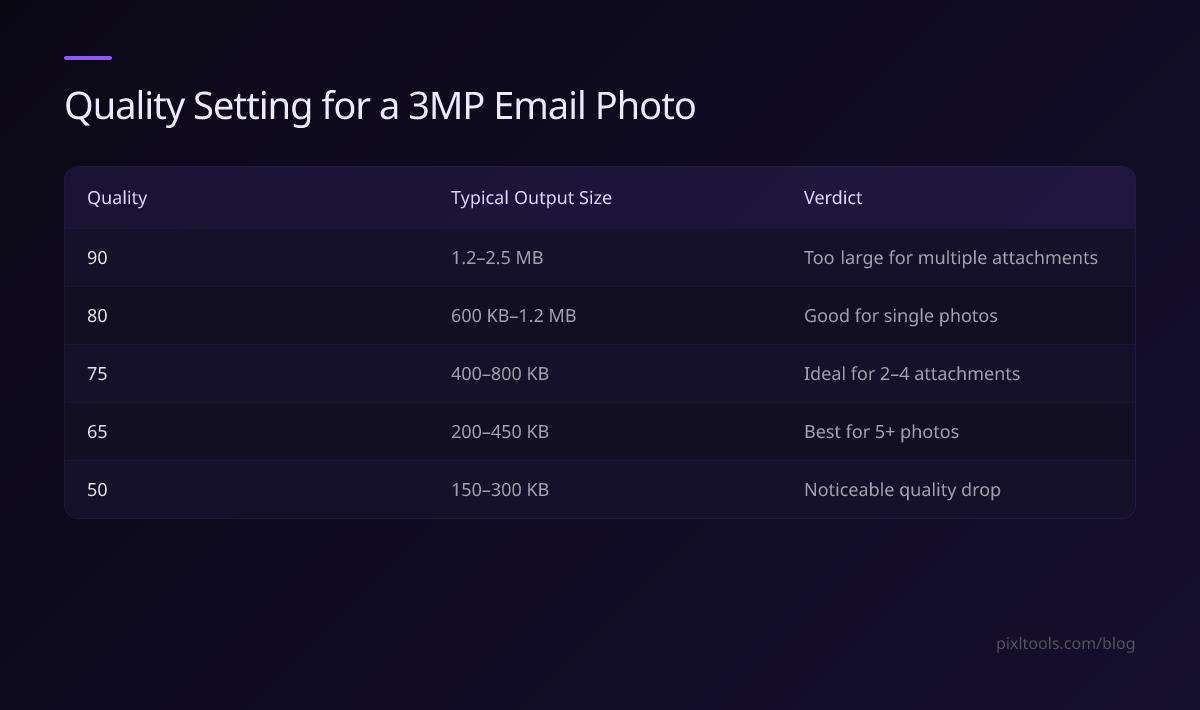
| Quality | Typical Output Size (3MP photo) | Verdict |
|---|---|---|
| 90 | 1.2–2.5 MB | Too large for multiple attachments |
| 80 | 600KB–1.2 MB | Good for single photos |
| 75 | 400–800 KB | Ideal for 2–4 attachments |
| 65 | 200–450 KB | Best for 5+ photos |
| 50 | 150–300 KB | Noticeable quality drop |
Quality 75–80 is the sweet spot — significant size savings with quality that looks professional at any normal viewing or print size.
Resize Before You Compress
If you need very small email attachments (under 300KB), resize the image to a smaller dimension first — then compress. A 1200×900 pixel JPEG at quality 75 is typically 150–300KB, compared to 500–800KB for the same quality at 3000×2250 pixels.
Use PixlTools Resize Image to shrink dimensions first, then compress.
Gmail-Specific Tip
Gmail automatically converts attached images to "Drive links" when your email exceeds ~25MB total. Recipients must click a Google Drive link instead of seeing the attachment inline. Keeping each image under 500KB ensures photos appear inline in the email body, which looks far more professional.
iPhone Users: Convert HEIC First
iPhones shoot in HEIC format by default — a format that most Windows PCs and email clients cannot open natively. Before emailing photos from an iPhone:
- Use PixlTools HEIC to JPG converter to convert
- Then compress with the image compressor
- Attach the resultant JPG
Alternatively, go to iPhone Settings → Camera → Formats → Most Compatible to make your iPhone shoot in JPEG automatically.
Frequently Asked Questions
What is the ideal image size for email attachments?
Aim for 200–800KB per image. This keeps total email size under 5MB for most use cases, well within all provider limits, and fast to send and receive.
How do I compress photos before emailing on iPhone?
Open pixltools.com in Safari on your iPhone, tap Compress Image, upload from your photo library, and download the compressed result. No app installation needed.
Will compressing photos for email reduce their quality?
At quality 75–80, the difference is imperceptible on screen and in print at normal sizes. Your recipient will not be able to tell the difference from the original.
Why did Gmail say my attachment was too large?
Gmail's attachment limit is 25MB per email. Each smartphone photo is typically 3–8MB, so 4–5 uncompressed photos exceed this. Compress photos to 500KB each and you can attach 40+ per email.