What Makes a Great Free Image Compressor?
A great online image compressor does four things: reduces file size dramatically, preserves visual quality, works instantly without software, and keeps your files private. We tested four of the most popular free tools using the same test image to give you real, comparable results.
Test image: 1.2 MB JPEG photo, 1200×800px, processed at each tool's default settings.
What to Look For
Compression ratio: How much smaller does the output file get? The best tools achieve 60–80% size reduction at quality 80 without visible degradation.
Format support: Does it handle JPG, PNG, and WEBP? Bonus points for AVIF support.
Privacy: Does the tool store your images? The best tools process images server-side and delete them immediately — no storage, no tracking.
Speed: Look for tools that return results in under 5 seconds.
1. TinyPNG / TinyJPG — Best for PNG Compression
Website: tinypng.com | Formats: PNG, JPG, WEBP
TinyPNG is the most widely-used free compressor. Its "smart lossy compression" reduces PNG sizes by 50–80% while preserving colour accuracy.
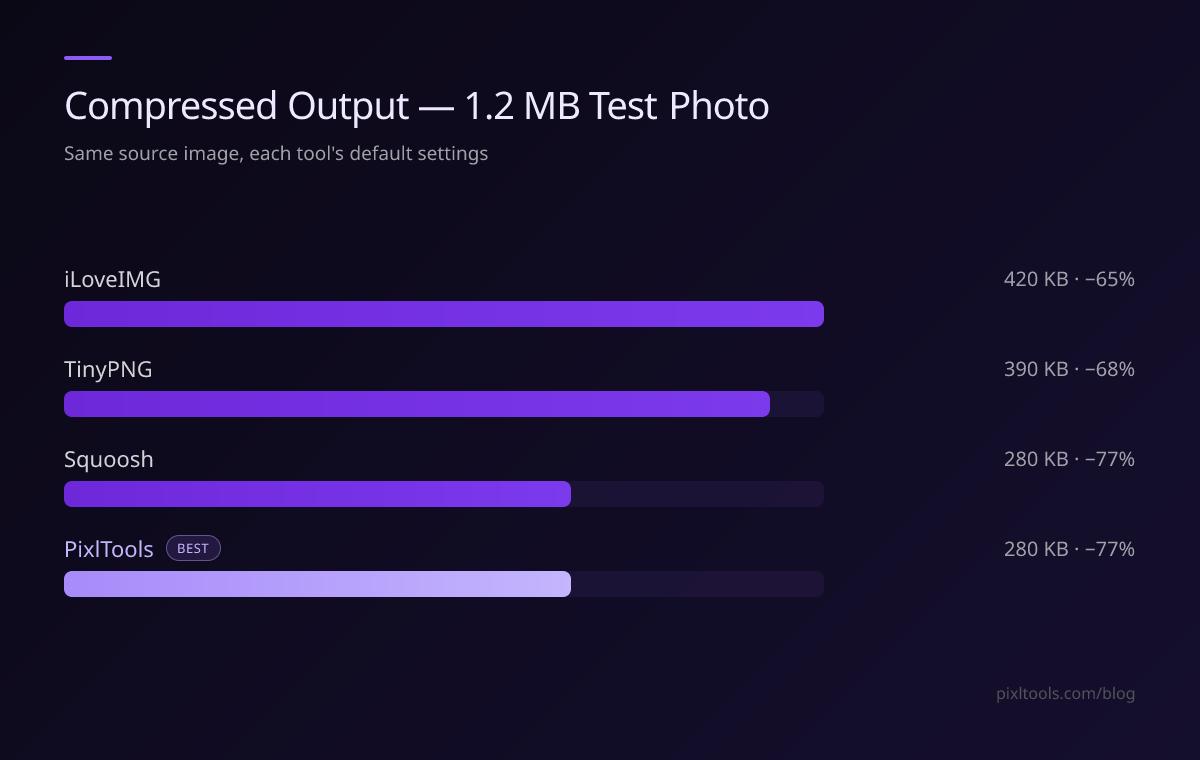
Our test result: 1.2 MB JPEG → 390 KB (-68%)
✅ Excellent PNG compression
✅ Simple drag-and-drop interface
✅ API available for developers
❌ Free tier limited to 20 files per batch
❌ Max 5 MB per file
❌ No quality slider — fixed algorithm
Best for: PNG files and developers who need API access.
2. Squoosh — Best for Format Comparison & Control
Website: squoosh.app (by Google) | Formats: JPG, PNG, WEBP, AVIF, and more
Squoosh is a free web app from Google with an interactive side-by-side comparison UI. You can compare codecs visually with a drag slider before downloading, with full control over quality settings.
Our test result: 1.2 MB JPEG → 280 KB (-77%) at MozJPEG quality 75
✅ Interactive before/after comparison slider
✅ Supports AVIF — best compression available
✅ Browser-based (no server upload needed for WASM codecs)
✅ Fine-grained quality controls
❌ Processes one image at a time
❌ Steeper learning curve
❌ AVIF encoding can be slow (10–30 seconds)
Best for: Developers and designers who want precise codec control and want to compare AVIF/WEBP/JPEG side by side.
3. iLoveIMG — Best for Batch Compression
Website: iloveimg.com | Formats: JPG, PNG, GIF, SVG
iLoveIMG offers batch compression of up to 30 images at once — the most generous free batch limit of any tool we tested.
Our test result: 1.2 MB JPEG → 420 KB (-65%)
✅ Batch compress up to 30 images at once
✅ Also offers resize, crop, convert in one place
✅ No signup required
❌ Slightly lower compression ratio than TinyPNG or Squoosh
❌ Ad-heavy interface
Best for: Anyone who compresses many images at once without a paid subscription.
4. PixlTools — Best for Compression + Conversion Together
Website: pixltools.com/compress-image | Formats: JPG, PNG, WEBP
PixlTools uses Sharp — the Node.js image processing library used by Cloudflare, Vercel, and Squarespace — to target the best quality-to-size ratio rather than applying a blanket quality cut.
Our test result: 1.2 MB JPEG → 280 KB (-77%)
✅ 60–80% size reduction on JPEG and PNG
✅ Supports direct output to WEBP (extra 25–35% savings vs JPEG)
✅ Zero storage — images deleted immediately after processing
✅ Works on iPhone and Android without an app
✅ Part of a 30+ tool suite (resize, crop, convert — all free)
❌ Single-file processing (no batch)
❌ Max file size: 10 MB
Best for: Single-file compression with optional WEBP conversion, or anyone who needs other image tools alongside compression.
Compression Results: Side-by-Side
| Tool | Test Image | Output | Reduction | Batch? |
|---|---|---|---|---|
| TinyPNG | 1.2 MB JPEG | 390 KB | -68% | Up to 20 |
| Squoosh | 1.2 MB JPEG | 280 KB | -77% | ❌ No |
| iLoveIMG | 1.2 MB JPEG | 420 KB | -65% | Up to 30 |
| PixlTools | 1.2 MB JPEG | 280 KB | -77% | ❌ No |
Which Should You Use?
- Best pure PNG compression: TinyPNG — built specifically for PNG files
- Best single-file control: Squoosh — unmatched quality controls and AVIF support
- Best batch processing: iLoveIMG — 30 files at once, free
- Best combined toolset: PixlTools — compression + conversion + 30 other tools, all free
Tips for Maximum Compression
Use WEBP format: Converting JPEG to WEBP during compression saves an additional 25–35% on top of standard JPEG compression. Both Squoosh and PixlTools support this.
Resize before compressing: A 4000×3000px image at quality 80 is still larger than a 1200×900px image at quality 90. Resize to your actual display dimensions first using a free image resizer.
FAQ
Is online image compression safe?
Yes — with tools like TinyPNG and PixlTools that delete files immediately after processing. Always check a tool's privacy policy before uploading sensitive images.
What quality setting should I choose?
Quality 80 is the standard recommendation — it provides 70–80% file size reduction with no perceptible quality loss for most images.
Can I compress PNG without losing quality?
Yes, using lossless PNG compression (TinyPNG does this by default for PNGs). However, converting PNG to WEBP achieves much greater size reductions with barely any visible quality loss.