What is Background Removal?
Background removal is the process of isolating the main subject of an image — a person, product, logo, or object — by erasing the surrounding background. The result is a transparent PNG that can be placed on any new background.
Why Remove Image Backgrounds?
- E-commerce: Product photos on white or transparent backgrounds look more professional and meet marketplace requirements (Amazon, Etsy, Shopify).
- Design: Cut out subjects to layer into composite images or marketing materials.
- Profile photos: Create clean headshots with custom backgrounds.
- Social media: Create eye-catching visuals without a studio setup.
How to Remove a Background for Free
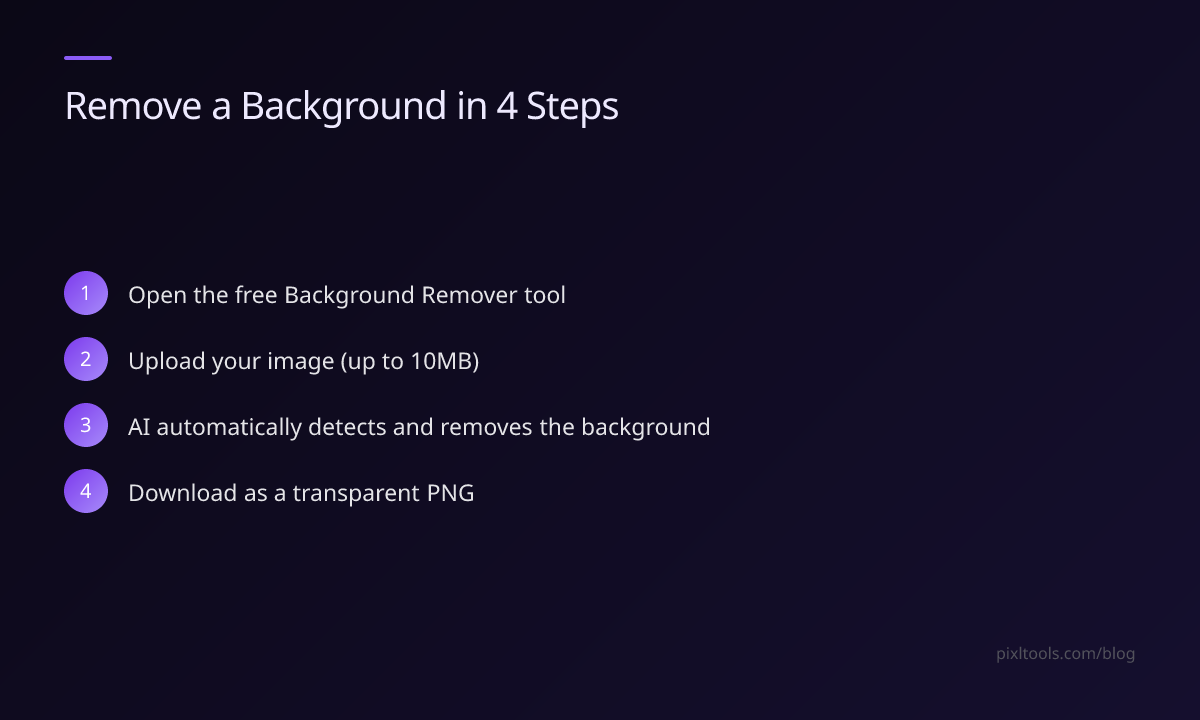
- Visit our free Background Remover tool.
- Upload your image (JPG, PNG, or WEBP up to 10MB).
- Our AI-powered tool automatically detects and removes the background.
- Download your result as a PNG with a transparent background.
No signup. No watermarks. Completely free.
Getting the Best Results
High contrast subjects work best. Photos where the subject is clearly distinct from the background (a person against a plain wall, a product on a table) produce the cleanest cutouts.
Avoid busy or similar-coloured backgrounds. If the background colour is similar to the subject (e.g., a beige product on a cream background), automatic removal may be less precise.
Hair and fine detail tips:
- Shoot against a solid-colour background for the cleanest edge on hair
- Use good lighting to create clear contrast between subject and background
- If the result has rough edges, re-shoot with better contrast
Common Use Cases
- Remove white backgrounds from product photos
- Create a transparent logo PNG for use on different coloured headers
- Cut out people for team profile pages
- Extract objects for YouTube thumbnails