Why Government Portals Reject Your Photo
Online application portals for passports, visas, and job applications almost always impose two requirements on uploaded photos:
- File size limit — commonly 100KB, 200KB, or 500KB
- Pixel dimension limit — usually 200×200px to 600×800px
A photo taken on a modern phone is typically 3–8MB and 4000+ pixels wide. Upload that and the portal rejects it immediately. You need to reduce both the dimensions and the file size before uploading.
What Size Does Your Portal Need?
| Application Type | Common Size Limit | Common Dimensions |
|---|---|---|
| Indian Passport (Seva) | 100KB | 200×200px |
| Nepal passport / citizenship | 80KB | 413×531px |
| UK Visa (UKVI) | 6MB (but JPEG) | At least 600×750px |
| US Visa (DS-160) | 240KB | 600×600px |
| Job applications (most portals) | 100–200KB | No fixed size |
| Upwork / Freelancer profile | Under 5MB (but aim for 150KB) | At least 250×250px |
Always confirm the exact requirements on the portal itself — these specifications change.
Step 1 — Resize to the Required Pixel Dimensions
Before compressing, resize your photo to the required dimensions. Compressing an oversized image still leaves it too large in pixels (many portals check dimensions, not just file size).
- Go to Resize Image
- Upload your photo (JPG or PNG)
- Enter the target width and height (e.g. 200×200 for Indian passport)
- Enable Lock Aspect Ratio if the portal doesn't specify exact dimensions
- Download your resized image
Step 2 — Compress to the Target File Size
- Go to Compress Image
- Upload your resized photo
- The tool compresses at quality 80 by default — this typically brings a 200×200px JPEG to 8–25KB (well under 100KB)
- If the portrait is larger (e.g. 600×800px), the result will be 30–80KB
Check the output file size before uploading. On Mac: right-click the file → Get Info. On Windows: right-click → Properties.
What If It's Still Too Big?
If your compressed photo is still above the limit, the usual cause is that your image is still too large in pixels. Repeat Step 1 with smaller dimensions, then compress again.
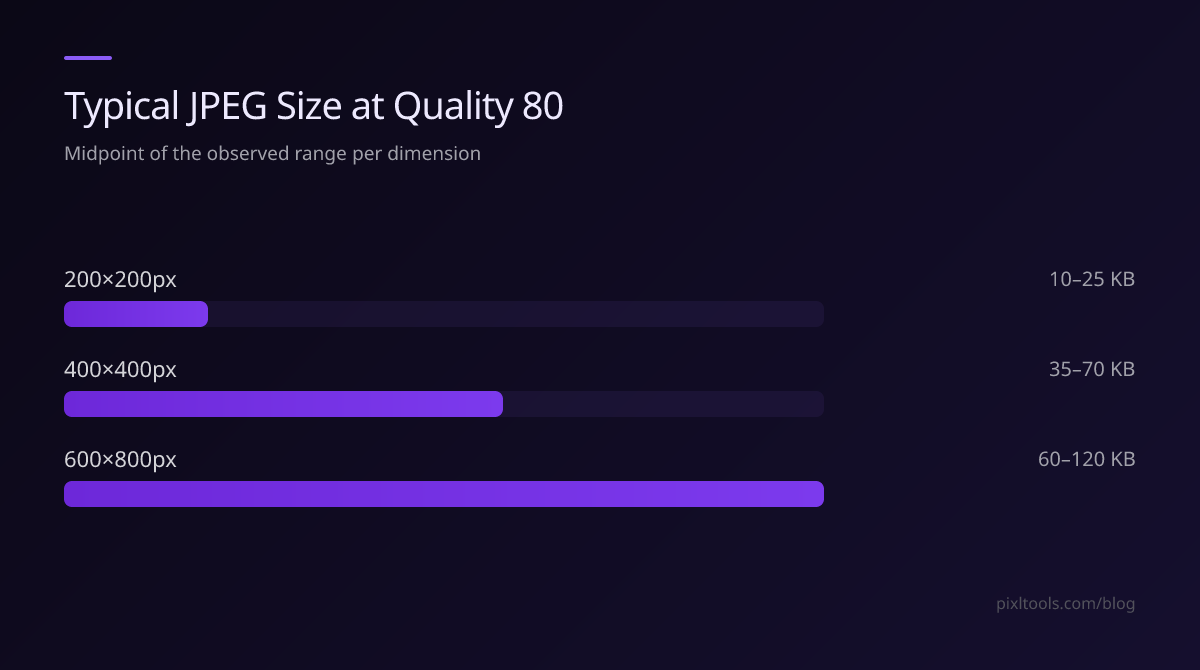
As a rough guide for JPEG photos:
- 200×200px at quality 80 → ~10–25KB
- 400×400px at quality 80 → ~35–70KB
- 600×800px at quality 80 → ~60–120KB
Common Mistakes
Don't use PNG for ID photos. PNG files are 3–5× larger than JPEG for the same photo. Most portals require JPEG anyway. Convert using our PNG to JPG tool.
Don't crop on your phone camera first. Phone crop tools often save at full phone resolution. Use our Crop Image tool to crop at the exact dimensions you need.
Don't skip resizing. Compressing a 4000×3000px image to quality 40 to hit a 100KB limit will produce a blurry disaster. Resize first, then compress at quality 75–85.
FAQ
What format should a passport photo be?
JPEG (JPG) for almost all portals worldwide. Avoid PNG, WEBP, or HEIC — convert to JPG first.
Can I compress an iPhone HEIC photo for a passport application?
Yes — convert it to JPEG first using our HEIC to JPG converter. Then resize and compress.
My compressed photo looks blurry — what do I do?
You've either compressed too aggressively (try quality 80 instead of lower) or the original photo was too small to begin with. Use a well-lit, high-resolution original for ID photos.
The portal shows an error saying "invalid image format."
This usually means the portal expects JPEG but received PNG or another format. Use PNG to JPG or WEBP to JPG to convert first.