Why Convert PDF to Image?
PDF files are great for documents, but images are more versatile for sharing, posting online, or embedding in designs. Common reasons to convert PDF to image:
- Share a single page as a preview on social media
- Extract charts or diagrams from a PDF document
- Use a PDF scan as an editable image
- Create a JPG thumbnail of a document for a website
How to Convert PDF to JPG Free Online
Our free PDF to Image tool makes it simple:
- Upload your PDF file (up to 10MB)
- The tool extracts the first page and converts it to a high-quality JPG
- Download your image instantly
No software. No signup. Works on any device.
PDF to Image Quality Tips
Resolution matters. PDF files are vector-based and scale infinitely. When converting to a raster format like JPG, higher output resolution (DPI) means sharper images. Our tool uses 150 DPI by default, which is ideal for web use.
For print, you'll want 300 DPI. This produces significantly larger files but ensures print-quality sharpness.
Use PNG for diagrams. If your PDF contains charts, diagrams, or text, export to PNG instead of JPG. PNG's lossless compression preserves sharp edges without JPEG artifacts.
Converting Images to PDF
The reverse — combining images into a PDF — is equally useful:
- Submit documents that require PDF format
- Create a photo book or portfolio PDF
- Combine multiple images into one shareable file
Use our Image to PDF converter to turn any JPG, PNG, or WEBP into a PDF document.
Multi-Page PDFs
Our online tool handles the first page of a PDF. For multi-page extraction, desktop tools like Adobe Acrobat, PDF.co, or command-line tools like pdftoppm (free, open source) can extract all pages as separate images.
Common Use Cases
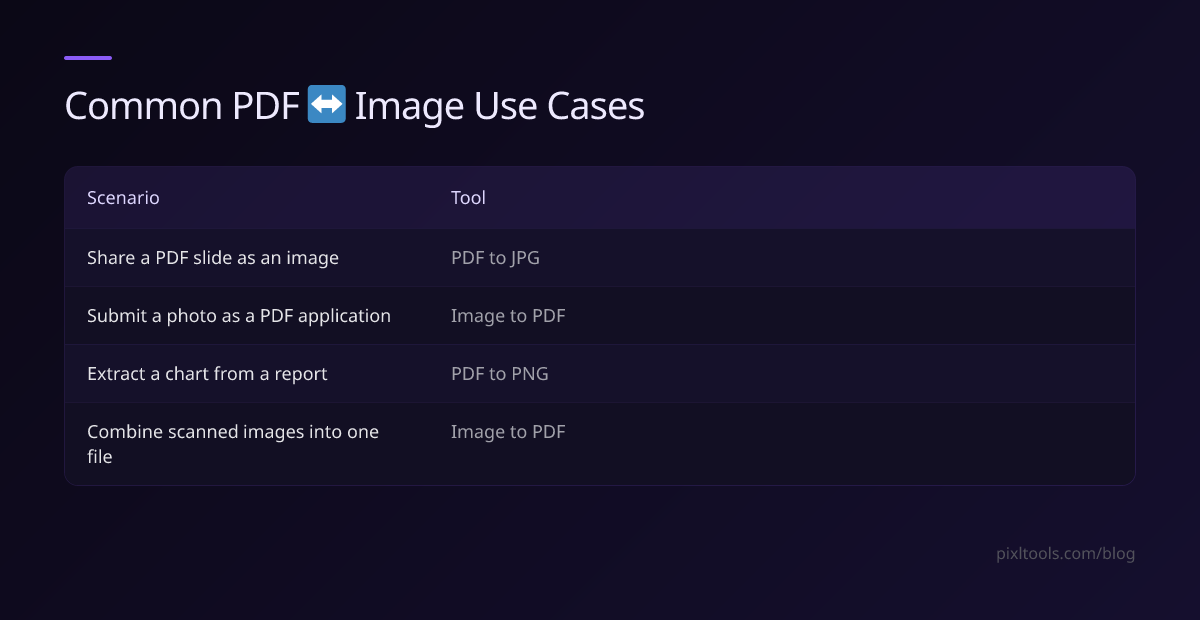
| Scenario | Tool |
|---|---|
| Share a PDF slide as an image | PDF to JPG |
| Submit a photo as a PDF application | Image to PDF |
| Extract a chart from a report | PDF to PNG |
| Combine scanned images into one file | Image to PDF |
FAQ
What PDF types are supported?
Standard PDF files up to 10MB. Password-protected PDFs must be unlocked first.
What's the output image quality?
High-quality JPG at 150 DPI, suitable for web display and social sharing.
Can I convert multiple pages at once?
Our online tool converts the first page. For multi-page extraction, use a desktop tool.