Why Windows 11 Can't Open HEIC Files
HEIC (High Efficiency Image Container) is Apple's default photo format since iOS 11. Windows 11 does not include HEIC support out of the box. When you transfer iPhone photos to your PC, Windows shows them as unknown file types — the Photos app can't open them and File Explorer shows a generic icon.
There are three ways to fix this, in order from easiest to most technical.
Method 1 — Convert Online (No Software, Fastest)
Works on any Windows 11 PC, takes about 10 seconds.
- Transfer your HEIC file from iPhone to PC (via USB, iCloud, or email)
- Go to HEIC to JPG Converter
- Drag and drop your HEIC file
- Click Download — your JPG is ready instantly
No signup. No watermarks. File is deleted immediately after conversion.
This is the best method if you only need to convert a few photos occasionally.
Method 2 — Install the Free Microsoft HEIC Codec
This installs native HEIC support directly into Windows 11, so Photos app and File Explorer can open HEIC files directly — without converting them first.
- Open the Microsoft Store (search "Store" in the Start menu)
- Search for "HEIF Image Extensions"
- Click Get (it's free from Microsoft)
- Once installed, Windows 11 can open HEIC files natively in Photos app
Note: This lets you *view* HEIC files. To convert them to JPG, right-click → Open with Photos → File → Save as → select JPEG.
For bulk conversion, this method is slow. Use Method 1 or Method 3 instead.
Method 3 — Use iCloud for Windows (Auto-Converts on Download)
If you use iCloud Photos, enable the automatic HEIC→JPEG conversion:
- Install iCloud for Windows from icloud.com
- Open iCloud settings → Photos
- Enable "Keep originals" → change to "Download and keep originals"
- Select "Download in JPEG and original formats"
iCloud will now download all your iPhone photos as JPEGs automatically.
How to Transfer HEIC Files from iPhone to Windows 11
Best method — USB cable:
- Connect iPhone with USB cable
- Unlock iPhone and trust the connection
- Open File Explorer → click your iPhone under "This PC"
- Navigate to Internal Storage → DCIM → camera folders
- Copy the HEIC files to your desktop
Automatic JPEG on USB transfer (iPhone setting):
- On iPhone: Settings → Photos → scroll down to "Transfer to Mac or PC"
- Select Automatic instead of "Keep Originals"
- Now when you drag photos to Windows, iPhone automatically sends JPEGs
Method Comparison
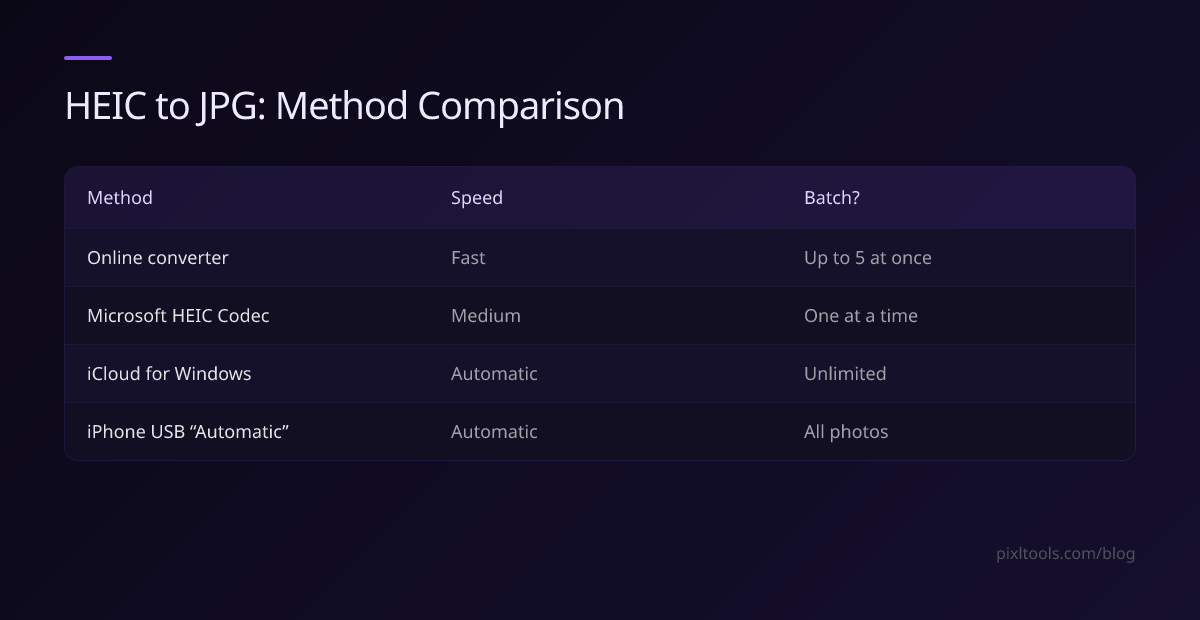
| Method | Speed | Batch? | Requires Install? |
|---|---|---|---|
| Online converter | Fast | Up to 5 at once | No |
| Microsoft HEIC Codec | Medium | One at a time | Free download |
| iCloud for Windows | Automatic | Unlimited | Free download |
| iPhone USB "Automatic" setting | Automatic | All photos | No |
FAQ
Can Windows 11 open HEIC files without installing anything?
No — Windows 11 requires either the free HEIF Image Extensions codec from the Microsoft Store, or a third-party tool. Without these, HEIC files show as unsupported.
Is converting HEIC to JPG safe for my photos?
Yes — the visual difference between HEIC and JPEG at quality 85+ is imperceptible. You lose the HEIC file's slightly more efficient compression, but gain universal compatibility.
Will converting HEIC to JPG remove the photo's location data?
No — GPS and EXIF metadata is preserved in the JPEG output by our converter. If you want to strip location data for privacy, use our EXIF Viewer & Remover after converting.
My iPhone photos transferred as HEIC even though I set Automatic — why?
The Automatic setting only works when transferring via USB to an updated version of iTunes or Windows Photos. Copying via File Explorer always transfers the original HEIC file.