Why Your LinkedIn Images Look Blurry
LinkedIn automatically resizes and recompresses every image you upload. If you upload an image that's the wrong dimensions, LinkedIn stretches or crops it — and then recompresses the result. You end up with a double-compressed, blurry image that makes your profile look unprofessional.
The fix is simple: upload at the exact recommended dimensions so LinkedIn doesn't have to resize anything.
LinkedIn Image Sizes (2026)
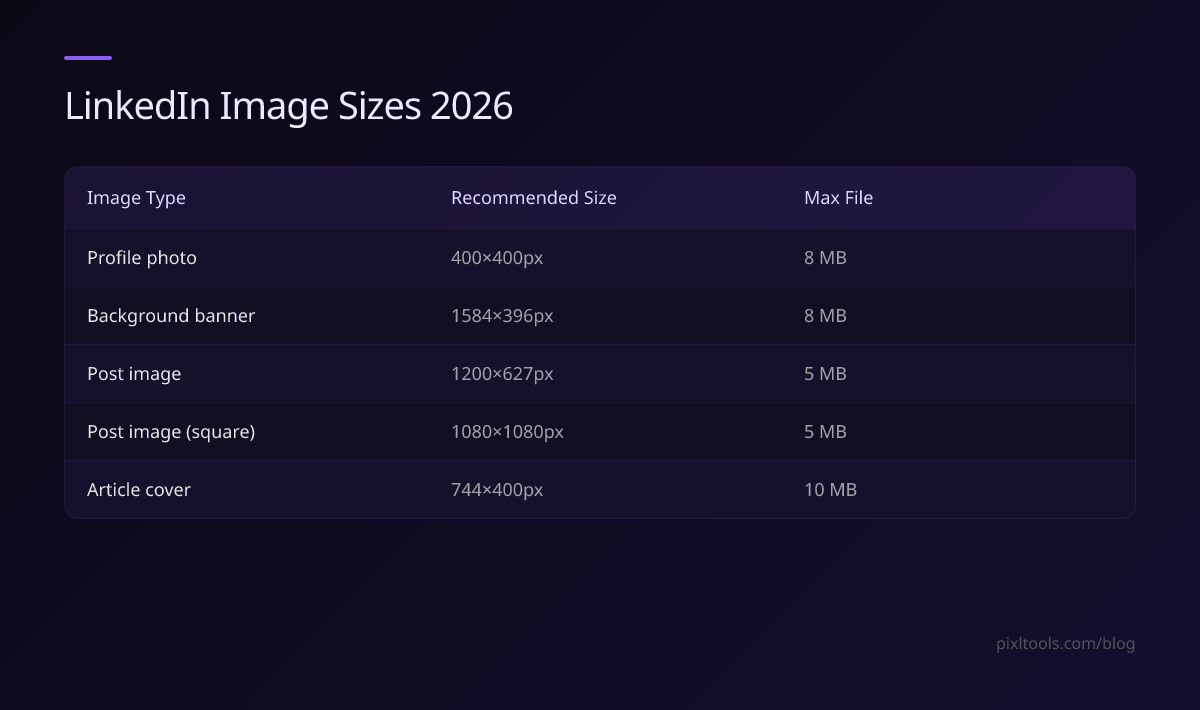
| Image Type | Recommended Size | Max File Size | Format |
|---|---|---|---|
| Profile photo | 400×400px | 8 MB | JPG, PNG, GIF |
| Background banner | 1584×396px | 8 MB | JPG, PNG, GIF |
| Post image (single) | 1200×627px | 5 MB | JPG, PNG, GIF |
| Post image (square) | 1080×1080px | 5 MB | JPG, PNG, GIF |
| Article cover image | 744×400px | 10 MB | JPG, PNG |
| Company logo | 300×300px | 4 MB | JPG, PNG |
| Company banner | 1128×191px | 4 MB | JPG, PNG |
Step 1 — Resize to the Correct Dimensions
LinkedIn will display your image at the exact dimensions above. Uploading larger is fine — LinkedIn will scale it down. But uploading smaller causes stretching and blurring.
- Go to Resize Image
- Upload your image
- Enter the target width and height from the table above
- Enable Lock Aspect Ratio off if you need exact dimensions (LinkedIn profile photos are square)
- Download and upload to LinkedIn
Step 2 — Keep File Size Under the Limit
LinkedIn's 8 MB limit is generous — most photos are well under this. But if you're sharing post images regularly, keeping them around 200–500 KB is good practice for fast-loading feeds.
- Go to Compress Image
- Upload your resized image
- Download — a 1200×627px JPEG at quality 80 is typically 80–200 KB
Profile Photo Tips for LinkedIn
Use a real photo, not a logo. LinkedIn's algorithm surfaces profiles with real headshots significantly more than those with logos or illustrations.
Crop to a square before uploading. LinkedIn displays profile photos in a circle. If your photo has a non-square aspect ratio, LinkedIn's automatic crop may cut off your face. Crop it yourself first using our Crop Image tool — aim for a square with your face centered in the top third.
Use JPG, not PNG. For headshots, JPG at quality 85 gives identical quality to PNG but is 5–10× smaller. PNG is only better for logos with transparent backgrounds.
Minimum readable size: 400×400px. Anything smaller gets upscaled by LinkedIn and looks pixelated. If your original headshot is lower resolution than this, it may look blurry no matter what you do — start with a better photo.
Background Banner Tips
The banner is 1584×396px — an unusual 4:1 ratio. Most phone photos won't fit this without cropping.
Crop first, then resize. Use our Crop Image tool to set a 4:1 aspect ratio crop on your image, then resize to 1584×396px.
Key content should be on the right. LinkedIn's mobile view crops the left side of the banner on smaller screens. Keep important text and elements on the right two-thirds.
Text on banners: Use a font size that's readable at thumbnail size (at least 24pt equivalent). LinkedIn users often see banners at reduced size.
Post Image Best Practices
1200×627px is the safest size for shared post images — it matches the Open Graph standard and looks correct on both desktop and mobile feeds.
If you're posting multiple images in a single post, LinkedIn uses a square crop (1:1) for the thumbnail grid. Use 1080×1080px images to avoid unexpected crops.
FAQ
What is the best format for LinkedIn profile photos?
JPG for headshots and photos. PNG only if you have a logo with a transparent background (though LinkedIn will add a white background anyway).
Why does my profile photo look blurry on LinkedIn?
Most likely your original photo is too small (under 400×400px) or you uploaded a very large file that LinkedIn heavily recompressed. Upload a well-lit 400×400px JPG at quality 85+.
Does LinkedIn support WebP images?
No — LinkedIn does not accept WebP uploads. Stick to JPG or PNG. Convert WebP files using our WebP to JPG converter before uploading.
Can I use a GIF as my LinkedIn profile photo?
LinkedIn Premium subscribers can use animated GIFs as profile photos. Free accounts can upload GIFs but they display as static images. Animated GIFs must be under 8 MB.
How do I resize my LinkedIn banner without distorting it?
Use our Crop Image tool to crop your image to a 4:1 aspect ratio, then resize to 1584×396px with Lock Aspect Ratio enabled.