Why Your Images Are Too Large to Email
Most email providers cap attachments at 25 MB (Gmail, Outlook) or even 20 MB (Yahoo). That sounds generous until you try to send five smartphone photos — modern iPhones and Android phones produce images that are 4–8 MB *each*. Attach three of those and you've already hit your limit.
Even when the email goes through, large attachments are slow to upload, slow for recipients to download, and often land in spam folders. Compressing your images before attaching them fixes all three problems at once.
What "Compressing for Email" Actually Means
Email attachments don't need print-quality resolution. The recipient will view your photo on a screen — typically at 1920×1080px or less. Sending a 4000×3000px RAW-quality photo for screen viewing is always overkill.
Two things determine your file size:
- Pixel dimensions — Reducing from 4000px wide to 1200px wide removes 91% of the pixels before you even touch compression.
- JPEG quality level — Quality 80 is visually identical to quality 100 for most photos, but files are 60–80% smaller.
Do both steps and a typical 6 MB smartphone photo becomes 150–300 KB.
Step-by-Step: Compress Any Image for Email (Free)
Step 1 — Resize to a Screen-Friendly Size
A 1200px wide image looks sharp on any screen and in any email client. Anything wider is invisible extra weight.
- Go to Resize Image
- Upload your photo
- Set Width to 1200px — height auto-adjusts to keep proportions
- Download the resized image
Step 2 — Compress the Resized Image
- Go to Compress Image
- Upload your resized image
- Download — a 1200px JPEG at quality 80 is almost always 100–300 KB
That's it. Two steps, two minutes, completely free.
Expected File Sizes After Compression
| Original Size | After Resize + Compress | Reduction |
|---|---|---|
| 6 MB smartphone photo | 150–300 KB | ~95% smaller |
| 3 MB DSLR photo | 100–200 KB | ~94% smaller |
| 1.5 MB screenshot | 80–150 KB | ~90% smaller |
| 500 KB PNG graphic | 40–100 KB | ~80% smaller |
Size Guidelines by Email Platform
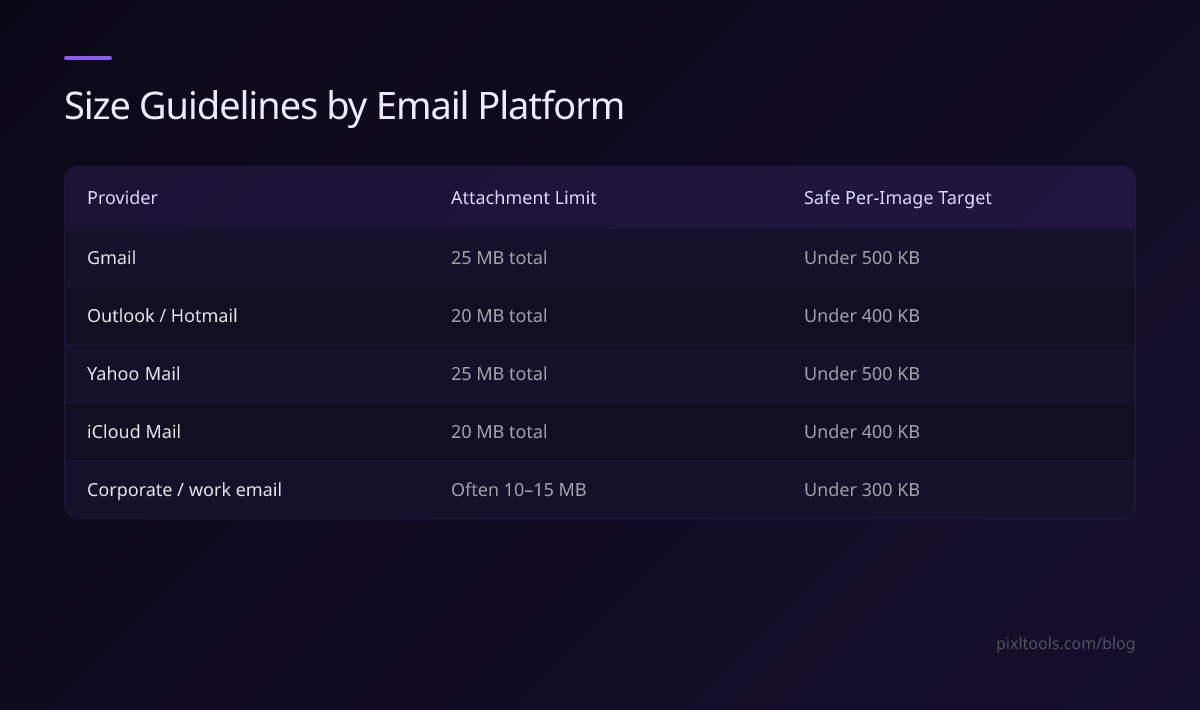
| Provider | Attachment Limit | Safe Per-Image Target |
|---|---|---|
| Gmail | 25 MB total | Under 500 KB |
| Outlook / Hotmail | 20 MB total | Under 400 KB |
| Yahoo Mail | 25 MB total | Under 500 KB |
| iCloud Mail | 20 MB total | Under 400 KB |
| Corporate / work email | Often 10–15 MB | Under 300 KB |
Safe rule of thumb: Keep each image under 500 KB and you'll have no trouble with any provider.
Special Case: Compressing PNG for Email
PNG files compress very differently from JPEGs. A PNG screenshot at 1920×1080px can be 1–3 MB even after PNG compression — because PNG uses lossless encoding.
If your PNG is a photo or has no transparency, convert it to JPEG first using our PNG to JPG converter. A 2 MB photo PNG typically becomes 100–200 KB as a JPEG. The visual difference is imperceptible.
If your PNG has a transparent background (a logo, illustration, or graphic), keep it as PNG — JPEG doesn't support transparency. But reduce the canvas dimensions to the minimum you need.
Compressing Multiple Images at Once
Our tool processes one image at a time. For batches of 10+ images:
- Windows: Use File Explorer → select images → right-click → Resize (via the free PowerToys Image Resizer from Microsoft)
- Mac: Select images in Finder → right-click → Quick Actions → Convert Image → choose size
- Command line: Run **mogrify -resize 1200x -quality 80 *.jpg** (requires free ImageMagick)
When Compression Isn't Enough: Use a Cloud Link Instead
If you need to send very high-resolution images for print, design work, or professional delivery, don't compress — use a cloud link:
- Upload your originals to Google Drive or Dropbox
- Right-click → Get shareable link
- Paste the link in your email body
The recipient downloads at full quality. Your email stays tiny.
FAQ
What is the best image format to send via email?
JPEG is the safest choice — every email client and device supports it. PNG works too but produces larger files for photos. Avoid WebP and HEIC; many email clients can't display them inline.
How do I compress images on my phone before emailing?
On iPhone: use our mobile-friendly Compress Image tool in Safari. On Android: same — open the tool in Chrome, upload, and download the compressed file.
Will the compressed image look bad?
At quality 80 and 1200px wide, the image is indistinguishable from the original on any screen. You'd need a magnifying glass to spot differences.
My email still says the attachment is too large — what now?
Check you're attaching the *compressed* version, not the original. If still large, resize to 800px wide and compress again. Alternatively, switch to a cloud link as described above.
Does Gmail compress images automatically?
Gmail recompresses images you insert inline into the email body. But *attached* files are sent exactly as-is — no automatic compression. That's why you need to compress before attaching.