Why Image Size Matters in WordPress
Images are typically the largest assets on a WordPress page — accounting for 50–70% of total page weight. Google's Core Web Vitals (specifically Largest Contentful Paint) penalises pages with slow-loading images. Uploading correctly sized, compressed images is the single highest-impact optimization you can make to a WordPress site.
WordPress Image Size Recommendations
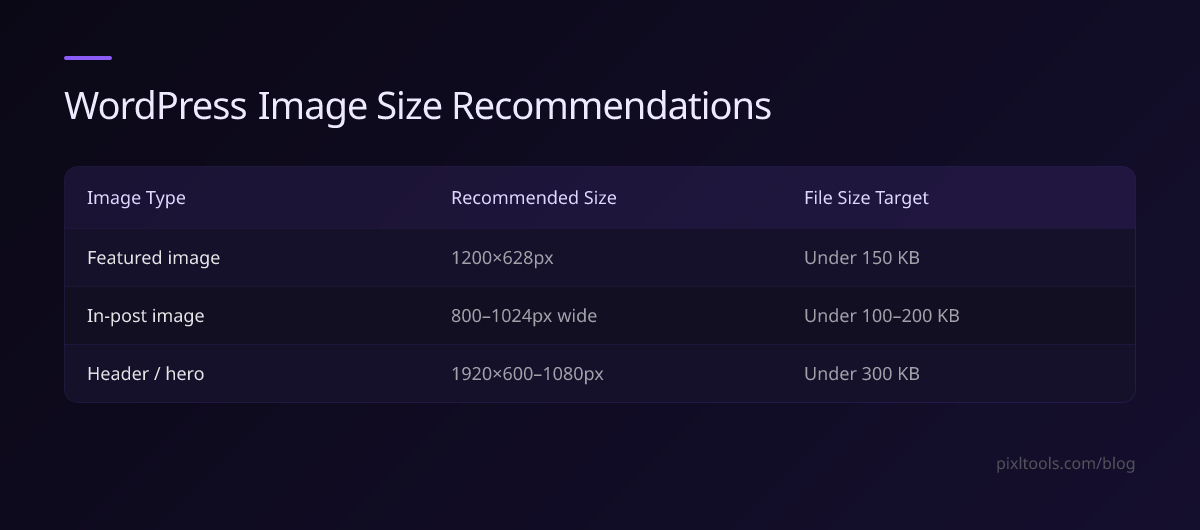
Featured Images (Post Thumbnails)
Featured images appear at the top of blog posts and in post grids on your homepage and archive pages.
- Recommended dimensions: 1200×628px (16:9 ratio)
- File size target: Under 150KB
- Format: JPEG for photos, PNG only for graphics with transparency
- Why 1200×628? This is also the Open Graph size for social sharing — the same image serves both your blog and social previews.
In-Post Images (Content Images)
Images embedded inside blog post content.
- Recommended width: 800–1024px (height proportional)
- File size target: Under 100KB for standard photos, under 200KB for detailed images
- Format: WebP (with JPEG fallback), or JPEG
WordPress automatically generates multiple sizes (thumbnail, medium, large, full) when you upload an image. Never upload a 5000px image just for a 800px content area — the browser downloads the original before WordPress can serve the smaller version.
Header / Hero Images
Full-width images at the top of pages.
- Recommended dimensions: 1920×600px to 1920×1080px
- File size target: Under 300KB
- Tip: Use JPEG quality 80. Hero images are large — every extra KB matters for LCP.
WordPress Media Library — What Sizes are Generated?
By default, WordPress creates these sizes on upload:
| Name | Default Size |
|---|---|
| Thumbnail | 150×150px (cropped) |
| Medium | Max 300×300px |
| Medium Large | Max 768px wide |
| Large | Max 1024×1024px |
| Full | Your original upload |
Always upload at a reasonable size. Uploading a 6000px photo just bloats your Media Library with multiple huge versions.
How to Optimize Images Before Uploading to WordPress
Step 1: Resize to display dimensions
Use our Resize Image tool to reduce to the maximum dimensions you'll display:
- Featured image → 1200×628px
- In-post → 1024px wide max
- Hero → 1920×800px
Step 2: Compress
Use our Compress Image tool at quality 80 (JPEG) or quality 75 (WebP). For most WordPress images:
| Image Type | Target After Compression |
|---|---|
| Featured image 1200×628 | Under 120KB |
| In-post photo 1024px | Under 90KB |
| Hero 1920×800 | Under 250KB |
| Thumbnail 300×300 | Under 30KB |
Step 3: Convert to WebP (recommended)
WebP produces 25–35% smaller files than JPEG at the same quality. Modern WordPress (6.1+) and all major hosting providers support WebP. Use our JPG to WebP or PNG to WebP converters.
WordPress Plugins vs Manual Optimization
Many WordPress sites use image optimization plugins (Smush, ShortPixel, Imagify). These are useful for existing Media Libraries, but they have limits:
- They cannot fix images that are oversized in pixel dimensions — only compression
- They add plugin overhead and API calls on every upload
- Free tiers have monthly compression limits
Best practice: Optimize before upload using PixlTools (free, no limits), then use a plugin only for the existing library.
WooCommerce Product Images
WooCommerce has its own image size requirements:
- Product image (main): 800×800px square (1:1 ratio)
- Product gallery: Same as main, 800×800px
- Shop catalog / archive: 400×400px (handled by WooCommerce automatically from the 800px source)
- File size: Under 100KB per product image
Square product images look cleanest in WooCommerce grids. Use our Crop Image tool to crop to 1:1 before compressing.
PageSpeed Score: How Images Affect It
Google PageSpeed Insights reports three image-related warnings:
- "Properly size images" — Your image upload dimensions are larger than the display size. Fix: resize before upload.
- "Efficiently encode images" — Images are not compressed enough. Fix: use quality 80 JPEG or WebP.
- "Serve images in next-gen formats" — You're serving JPEG/PNG where WebP would be smaller. Fix: convert to WebP.
Fixing all three can push your PageSpeed score from the 50s to the 80s–90s.
FAQ
What is the ideal image size for WordPress blog posts?
Featured images at 1200×628px under 150KB, and in-post images at max 1024px wide under 100KB. Always upload at the exact display dimensions rather than relying on WordPress to serve the right size.
Does WordPress automatically compress images?
WordPress applies a light compression (quality ~82) on upload since version 4.5, but it does not resize images. Uploading a 5000px photo still stores a 5000px original in your Media Library.
What format should I use for WordPress images?
Use WebP for all photos on modern WordPress sites — it's 25–35% smaller than JPEG. Keep JPEG fallbacks for older themes that don't serve WebP correctly.
How do I check if my WordPress images are slowing my site?
Run your URL through Google PageSpeed Insights (pagespeed.web.dev). The "Opportunities" section shows exactly which images are oversized or under-compressed and how much load time you can save.