Why Batch Process Images?
Processing images one by one is tedious and time-consuming. Whether you're preparing a product catalogue with 200 photos for an e-commerce site, exporting a wedding gallery for client delivery, or optimising an entire website's image library for faster loading, you need batch processing.
Photoshop's batch scripts and actions are powerful, but Adobe's subscription costs $55+/month. The good news: there are excellent free alternatives that can handle most batch processing tasks just as well — and in some cases, faster.
This guide covers the main approaches, from simplest to most powerful, so you can choose the right tool for your situation.
Method 1: PixlTools (No Installation Required)
For most everyday tasks, PixlTools is the fastest option — zero setup, works in any browser on any device, and processes images one at a time with consistent, professional-quality results. While the tools currently process one image per session, you can work through a batch quickly with no software to install, no file size limitations from desktop RAM, and no account needed.
Popular tools for batch-style workflows:
- Compress Image — Reduce file size up to 80% with one click
- JPG to WebP — Convert your entire photo library to modern WebP format
- Resize Image — Resize to exact social media or web dimensions
- PNG to JPG — Convert graphics to JPEG for smaller file sizes
Best for: Quick processing of small batches (5–30 images), one-off format conversions, situations where you need online access without installing software.
Method 2: IrfanView (Windows, Free)
IrfanView is a free, lightweight image viewer and editor for Windows with genuinely excellent batch processing capabilities. It has been around since 1996 and remains one of the best free batch tools available for Windows users.
How to Batch Convert in IrfanView
- Open IrfanView and go to File, then Batch Conversion/Rename
- Navigate to your source folder and select all images (Ctrl+A to select all)
- Choose your output format from the dropdown (JPEG, PNG, WebP, etc.)
- Click the Advanced button to set quality, resize dimensions, and other options
- Browse to choose an output folder
- Click Start Batch
IrfanView can process hundreds of images in seconds. You can apply a consistent resize, format conversion, and quality setting to an entire folder at once without any scripting knowledge.
Best for: Windows users who want a free, fast desktop batch processor. Handles JPEG, PNG, WebP, TIFF, BMP, GIF, PDF, and 50+ other formats.
Method 3: GIMP with Script-Fu (Windows, Mac, Linux)
GIMP is a free, open-source image editor comparable in features to an older version of Photoshop. It supports scripting through Script-Fu (a Scheme-based scripting language) that lets you apply the same editing operation to many images automatically. If you need to apply more complex edits (colour correction, cropping, layering) in a batch, GIMP is your best free option.
Getting Started with GIMP Batch
In GIMP, go to Filters, then Script-Fu, then Console. You can type a script that loops through your image files, applies operations (resizing, format conversion, colour adjustments), and saves each result to an output folder.
Best for: Advanced users comfortable with scripting who want a free, cross-platform tool with near-Photoshop editing capabilities, not just simple resize/convert operations.
Method 4: ImageMagick (Command Line)
ImageMagick is the most powerful free image processing tool available. It's a command-line program used by major companies including Google, Facebook, and many CDNs to process millions of images programmatically. If you are comfortable with a terminal, ImageMagick is unbeatable for batch processing speed and flexibility.
Install ImageMagick
- Mac: Install via Homebrew with "brew install imagemagick"
- Windows: Download the installer from imagemagick.org
- Linux: Install via your package manager (e.g., "sudo apt install imagemagick" on Ubuntu)
Common Batch Commands
To resize all JPEGs in a folder to 1200px wide:
mogrify -path ./output -resize 1200x *.jpg
To convert all PNGs to WebP at quality 80:
mogrify -path ./output -quality 80 -format webp *.png
To compress all JPEGs to quality 80:
mogrify -path ./output -quality 80 *.jpg
The "mogrify" command applies operations in-place (use -path to redirect output to a different folder and keep your originals). The "convert" command is used for more complex operations on individual files.
Best for: Developers, power users, and anyone processing hundreds or thousands of images regularly. The most flexible and scriptable free option available.
Method 5: Sharp CLI (Node.js)
Sharp is the same image processing library that powers PixlTools. It's extremely fast (C-based, built on the libvips pipeline), supports every modern format, and is available as both a Node.js library and a command-line tool.
Install Sharp CLI
npm install -g sharp-cli
Common Sharp CLI Commands
To convert and resize all JPEGs in a folder:
sharp -i ./input/*.jpg -o ./output -f webp --quality 80 --resize 1200
Sharp CLI is dramatically faster than ImageMagick for most operations. It processes large batches (hundreds of images) in seconds rather than minutes.
Best for: JavaScript/Node.js developers who want programmatic batch processing integrated into a build pipeline or web application, with maximum performance.
Method 6: XnConvert (Windows, Mac, Linux — Free)
XnConvert is a free, cross-platform GUI batch processor from the same team as XnView. It gives you the power of ImageMagick with a clean graphical interface — no command line required.
Key features:
- Process entire folders or custom file lists
- 80+ output formats including WebP, AVIF, HEIC, TIFF, and PDF
- Apply chains of operations: resize, then compress, then watermark, then convert
- Rename output files using pattern rules (e.g., add -800w suffix)
- Works identically on Windows, Mac, and Linux
Best for: Non-technical users on any operating system who want a free, GUI-based batch processor with more options than IrfanView and no command-line requirement.
Choosing the Right Method
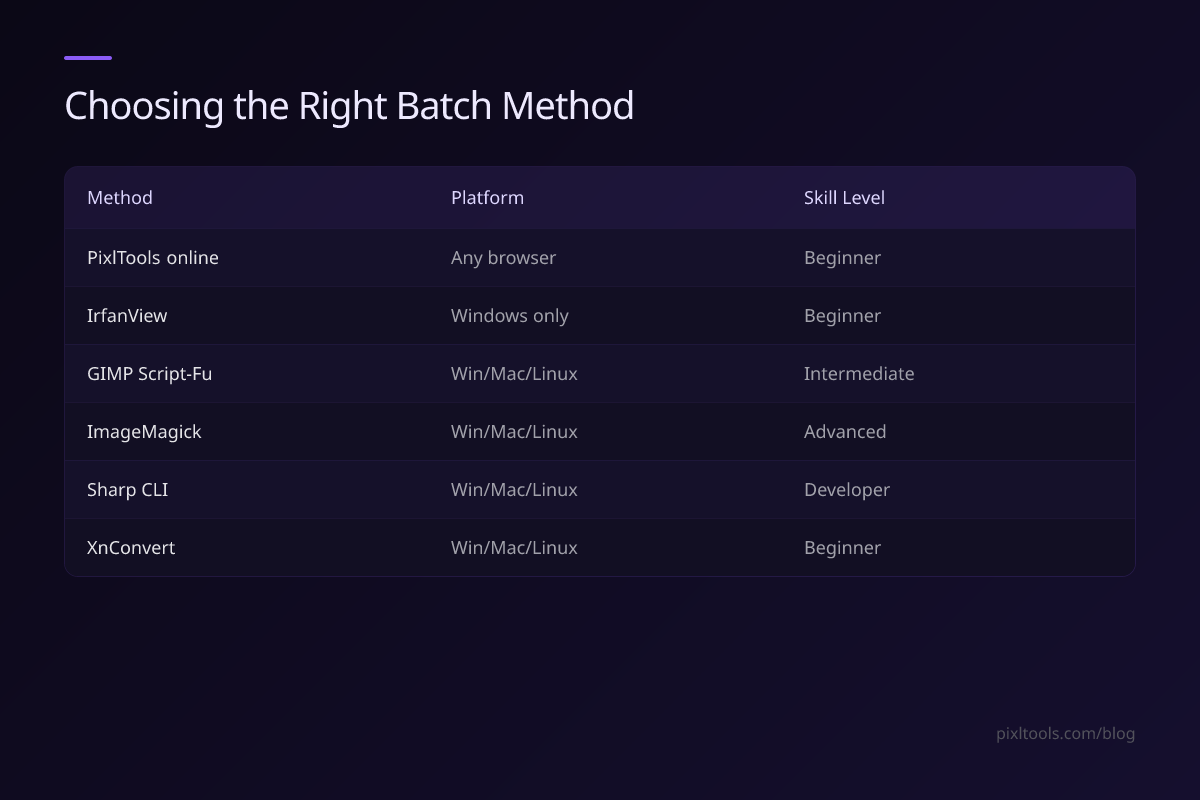
| Method | Platform | Skill Level | Best For |
|---|---|---|---|
| PixlTools online | Any browser | Beginner | Small batches, quick conversions |
| IrfanView | Windows only | Beginner | Fast Windows batch processing |
| GIMP Script-Fu | Win/Mac/Linux | Intermediate | Complex edits + batch |
| ImageMagick | Win/Mac/Linux | Advanced | Power users, shell scripting |
| Sharp CLI | Win/Mac/Linux | Developer | Fastest bulk processing |
| XnConvert | Win/Mac/Linux | Beginner | Cross-platform GUI batch |
Tips for Any Batch Processing Workflow
Always work on copies, not originals. Never run batch operations directly on your original files. Always export to a separate output folder. One misconfigured command can permanently overwrite hundreds of irreplaceable photos.
Resize before compressing. Compressing a 4000px image to 80% quality gives worse results than resizing to 1200px first, then compressing. Always resize to your target dimensions as the first step, then apply quality compression.
Choose format based on content type. Use WebP or JPEG for photographs, PNG for graphics with transparency, and SVG for icons and logos. Converting a photo to PNG will make it much larger with no quality benefit.
Test on a small sample first. Run your batch script on 5–10 test images before processing hundreds. Verify the output quality and dimensions look correct before committing the full batch.
Name files systematically. Use consistent naming conventions for batched outputs: product-name-1200w.webp, client-photo-800px.jpg. This makes it easy to manage and reference files later, especially for web development where you might have multiple sizes of the same image.
FAQ
Can I batch process images for free without installing software?
Yes. PixlTools lets you process images in any browser without installing anything or creating an account. While it processes images one at a time rather than a full batch at once, there are no per-image costs or limits.
What is the fastest free tool for batch converting thousands of images?
For raw speed, Sharp CLI (Node.js) and ImageMagick are the fastest options for large batches. Both are command-line tools and can process hundreds of images per second on modern hardware.
Can I batch resize images to multiple sizes at once?
Yes. ImageMagick and Sharp CLI both support outputting multiple sizes from a single input image in one command. This is useful for generating responsive image sets (400px, 800px, 1600px) for a srcset attribute.