What is a Photo Collage?
A photo collage combines multiple photos into a single image, arranged in a grid layout. Collages are popular for:
- Instagram posts: Showcase several moments in one square post
- Social media: Group vacation, event, or product photos together
- Gifts and prints: Create memorable montages of family photos
- E-commerce: Show product variants or multiple angles in one image
- Blog thumbnails: Combine related images into a single header
How to Make a Photo Collage Online for Free
Our free Photo Collage Maker creates grid collages in seconds — no software required:
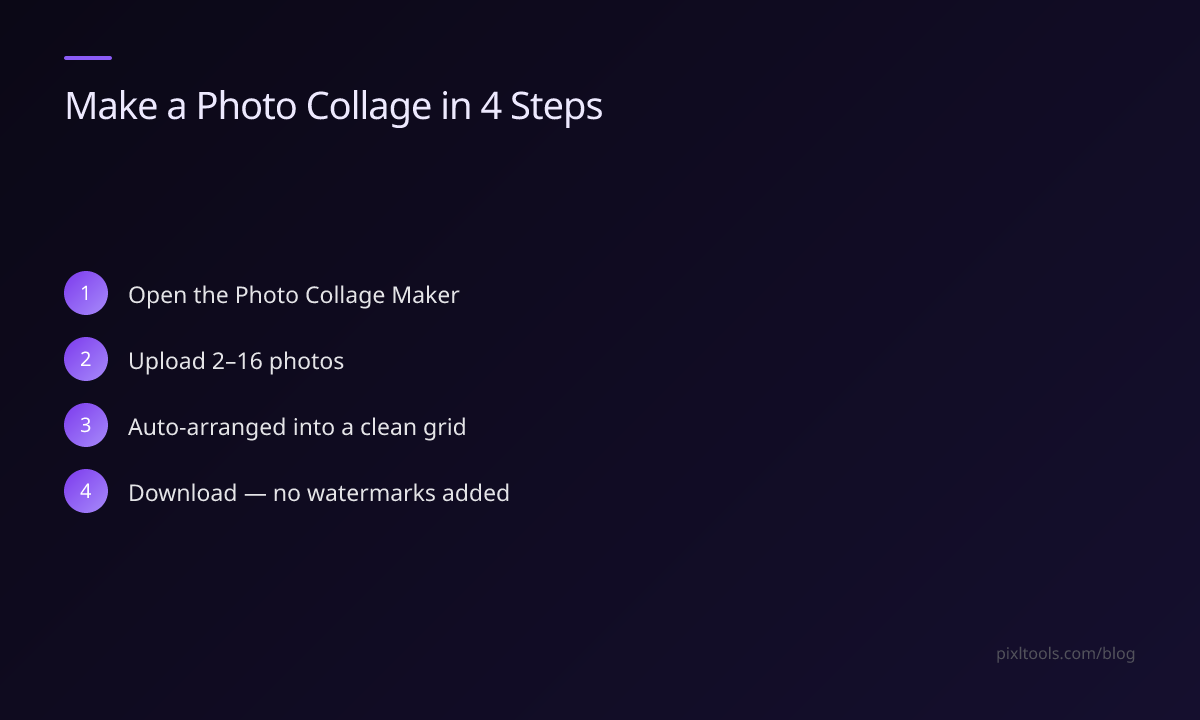
- Visit the Photo Collage Maker tool
- Upload 2–16 photos (JPG, PNG, or WebP)
- The tool automatically arranges them in a clean grid layout
- Download your collage as JPG or PNG — no watermarks added
No account, no signup, no watermarks.
Choosing the Right Collage Layout
The number of photos determines the natural grid:
| Photos | Recommended Layout |
|---|---|
| 2 | Side-by-side (2×1) |
| 3 | Horizontal trio (3×1) or L-shape |
| 4 | 2×2 square grid (most balanced) |
| 6 | 2×3 or 3×2 grid |
| 9 | Perfect 3×3 square grid |
| 16 | 4×4 grid |
Tip: For Instagram, use an even number of square-cropped photos for a clean 2×2 or 3×3 layout.
Best Image Sizes for Collages
Before making your collage, resize all photos to the same dimensions for a consistent grid:
Instagram collage post: Start with 1080×1080px per photo
Facebook collage: 1200×630px total, so each photo in a 2×1 layout should be 600×630px
Print collage (A4): 2480×3508px total — divide by grid size for each photo
Use our Resize Image tool to prepare all photos at the same dimensions before combining.
Making Square Photos for a Collage
Social media collages look best when all photos are square (1:1 ratio). To crop your photos to square:
- Visit Aspect Ratio Changer
- Select the 1:1 preset
- The photo is center-cropped to a perfect square
- Download and repeat for each photo
Tips for a Great Collage
Consistent color palette: Choose photos with similar tones for a cohesive look. Moody, bright, or pastel — pick a style and stick to it.
Compress your collage: After creating your collage, run it through our Image Compressor to make the file smaller for faster sharing. A high-quality collage can be quite large.
Add borders: Use our Image Border Adder to add thin white or black borders between photos for a classic grid look.
Match orientations: Landscape and portrait photos mixed in one grid can look messy. Crop all photos to the same orientation first.
FAQ
Is the photo collage maker free?
Yes — completely free with no watermarks, no account required, and no limits on how many collages you make.
What is the output format?
Download your collage as JPG (best for photos) or PNG (best for graphics with transparency or text overlays).
Can I use it on my phone?
Yes — the tool works on iPhone and Android browsers. Upload photos directly from your camera roll.
How many photos can I combine?
Our tool supports between 2 and 16 photos in a single collage grid.