What is Image Cropping?
Cropping removes the outer edges of an image to focus on a specific area, change the aspect ratio, or meet a platform's required dimensions. Unlike resizing (which scales the entire image), cropping cuts away parts of the image without scaling.
When to Crop vs Resize
| Need | Action |
|---|---|
| Make an image fit a square frame | Crop to 1:1 aspect ratio |
| Make an image load faster | Resize to smaller dimensions |
| Focus on a subject in the center | Crop to remove the borders |
| Change from portrait to landscape | Crop with new aspect ratio |
| Meet exact pixel dimensions | Crop + resize combination |
How to Crop an Image Online Free
Use our Crop Image tool:
- Go to Crop Image
- Upload your image (JPG, PNG, or WEBP)
- Enter your crop settings:
- Custom dimensions: specify exact pixel width and height
- Aspect ratio presets: 1:1, 4:3, 16:9, 4:5, 9:16
- Choose crop positioning (top, center, bottom)
- Click "Process" and download your cropped image
Common Crop Dimensions
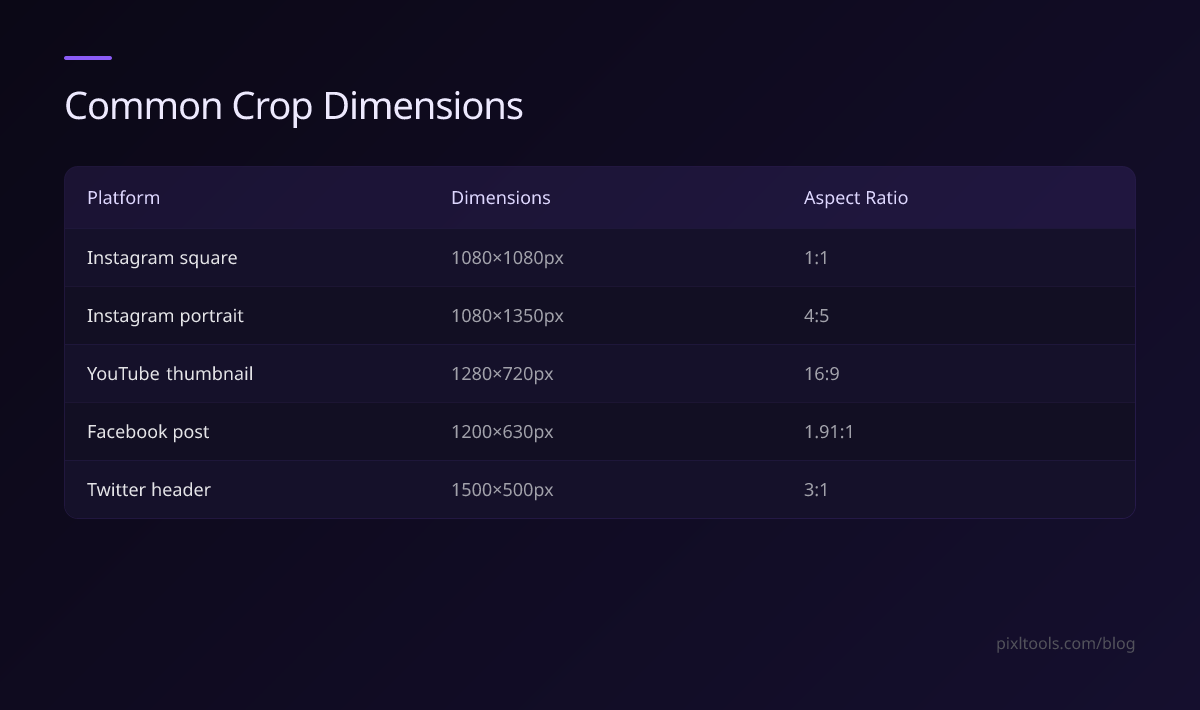
| Platform | Dimensions | Aspect Ratio |
|---|---|---|
| Instagram square | 1080×1080px | 1:1 |
| Instagram portrait | 1080×1350px | 4:5 |
| YouTube thumbnail | 1280×720px | 16:9 |
| Facebook post | 1200×630px | 1.91:1 |
| Twitter header | 1500×500px | 3:1 |
Tips for Better Crops
Rule of thirds: Position your main subject at the intersections of an imaginary 3×3 grid rather than dead center. Results are more dynamic and engaging.
Crop tightly for portraits: For headshots, crop just above the top of the head and below the shoulders. This creates more impact than showing the full body.
Check the thumbnail: After cropping, zoom out to see how it looks at thumbnail size (Instagram grid, Google search results). The subject should be clearly identifiable.
Platform-Specific Cropping Guide
Instagram is the most crop-sensitive platform because images are displayed at significantly different sizes depending on context: 293×293px in the profile grid, 1080×1350px in the feed, and 1080×1920px in Stories.
- Grid optimization: Your crop must work at 293×293px. Avoid putting critical details in corners that get cut off.
- Portrait posts (4:5): The 1080×1350px portrait crop shows the largest possible image area in the feed — use this for maximum visibility.
- Carousel posts: All images in a carousel must have the same aspect ratio. Plan your crop before you start the series.
Use our Crop Image tool with the 4:5 preset to create Instagram-perfect portrait crops.
YouTube Thumbnails
YouTube displays thumbnails at 320×180px in search results, but requires the source file to be at least 1280×720px (16:9). A 16:9 crop of your image is essential — anything else gets pillarboxed or letterboxed by YouTube.
Crop your image to 16:9 with our tool, then use the Thumbnail Generator to resize to 1280×720px.
E-Commerce Product Photos
Marketplaces like Amazon, Etsy, and Shopify display product images in square containers. Cropping to a 1:1 aspect ratio before uploading ensures your product fills the frame instead of having awkward whitespace on the sides. Aim for 2000×2000px minimum for Amazon's zoom feature.
LinkedIn and Professional Networks
LinkedIn post images display best at 1200×628px (approximately 1.91:1). Profile photos should be square. Cover photos use a 4:1 ratio (1128×191px). Use the custom pixel crop option to hit these exact dimensions.
Crop vs Other Image Operations: What's the Difference?
| Operation | What it does | Changes dimensions? | Changes quality? |
|---|---|---|---|
| Crop | Removes outer pixels | Yes (smaller) | No |
| Resize | Scales all pixels | Yes | Minor |
| Compress | Reduces file size | No | Minor |
| Rotate | Reorients image | Swaps width/height | No |
Cropping on Mobile Devices
You don't need a desktop to crop images — our tool works perfectly on iPhone and Android browsers.
On mobile:
- iPhone: Open Safari or Chrome → go to pixltools.com/crop-image → tap the upload button and choose from your Camera Roll
- Android: Open Chrome → navigate to the tool → select the image from your gallery
- The tool is fully touch-optimized — pinch and zoom work naturally
For bulk cropping of many photos, a desktop browser is faster. But for one-off crops on the go, the mobile experience is seamless.
FAQ
Can I crop without losing quality?
Cropping does not affect image quality — it only removes pixels from the edges. The remaining pixels are unchanged in quality.
Can I undo a crop?
Our tool always preserves your original file. Just re-upload and crop again with different settings.
What if I need to crop to exact pixels?
Enter the exact pixel dimensions in the custom crop field. The tool will center-crop to those dimensions.
Does cropping reduce file size?
Yes — slightly, because fewer pixels means less data. For a large reduction in file size, use our Compress Image tool after cropping.
What is the best crop for Instagram in 2026?
For maximum feed presence, use 4:5 (portrait) at 1080×1350px. For Stories, use 9:16 at 1080×1920px. For the profile grid, make sure your main subject is visible in the center 293×293px area of the image.